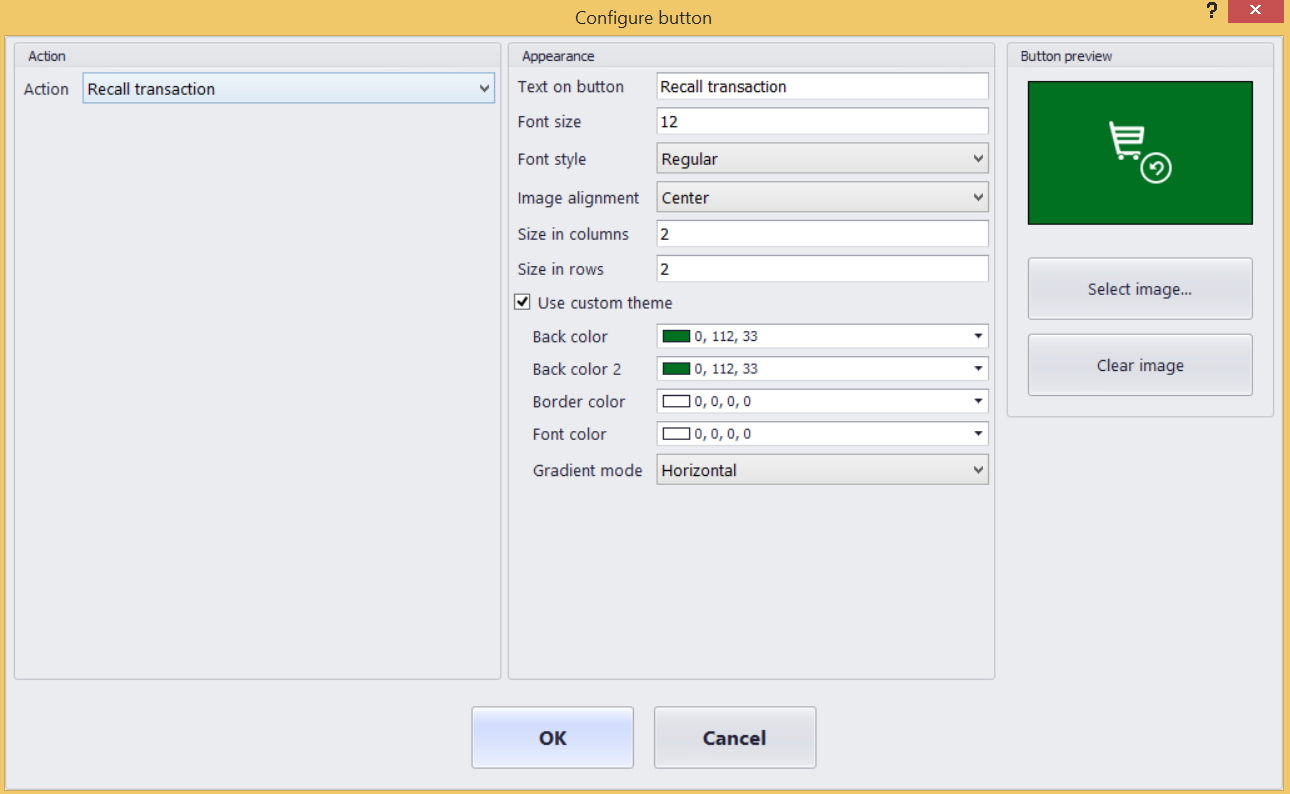
Three things in one post: how to run a test job in AX7, how the like operator differs from AX 2012, and a job that saves you from manually editing Retail Screen Layout buttons one at a time.
Running a job in AX7
In AX 2012, this was an AOT Job node. In AX7, the Jobs node is gone — a job is just a public class with a static Main method:
public class TestJob
{
    public static void main(Args args)
    {
        // runnable code goes here
    }
}
The public access specifier on the class is required in AX7; it wasn't in AX 2012. For the full steps to create and run one, see Get started developing in AX 7.
The like operator
AX uses * as a wildcard, not SQL's %.
Bulk-updating Retail Screen Layout buttons
Editing button colors one at a time in the Retail Screen Layout designer is slow. If you need to change the same property across many buttons — say, while prepping a demo and trying out different button colors — a job with update_recordset does it in one shot:
class TestJob
{
    public static void main(Args args)
    {
        RetailButtonGridButtons retailButtonGridButtons;

        update_recordset retailButtonGridButtons
            setting BackColor = -65536,
                    BackColor2 = -65536,
                    FontColor = 0
            where retailButtonGridButtons.buttonGridId like '*ABC*';
    }
}
Note the like '*ABC*' — this is the wildcard from above, matching every button grid whose ID contains ABC.
This bulk-update approach is fine for scenarios like demo prep. For a real data migration, use DIXF instead.
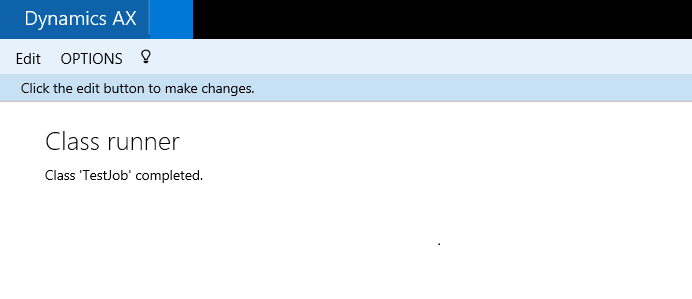
Running the job successfully updates every matching button grid:
So with this code you don't need to go to each button grid in the layout and change properties manually — you skip having to see this screen over and over: