Applies up to Dynamics 365 for Operations 7.1. Blank Operations in MPOS work differently from 7.2 onwards.
Blank Operations let you extend Retail POS by adding custom logic that's triggered from a Retail POS Register button. Implementing them in MPOS is different from Enterprise POS — MPOS is a modern app, while EPOS is a Windows Forms app — so the two aren't interchangeable.
Here's the simplest possible customization: a button that opens a URL when pressed.
1. Add a button to the MPOS layout
Start in AX. If you don't want to touch the standard layouts, copy one of the existing ones and modify the copy in the designer. The designer only opens in Internet Explorer, so save yourself the trouble of trying Chrome or Edge first.
If you'd rather not switch browsers and trust a third-party extension, the ClickOnce for Google Chrome extension will open the designer inside Chrome.
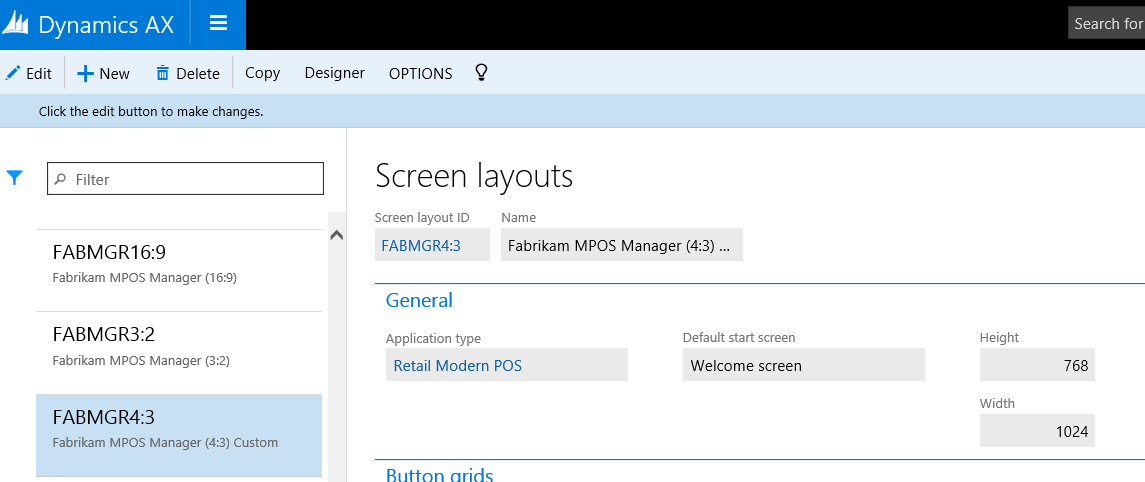
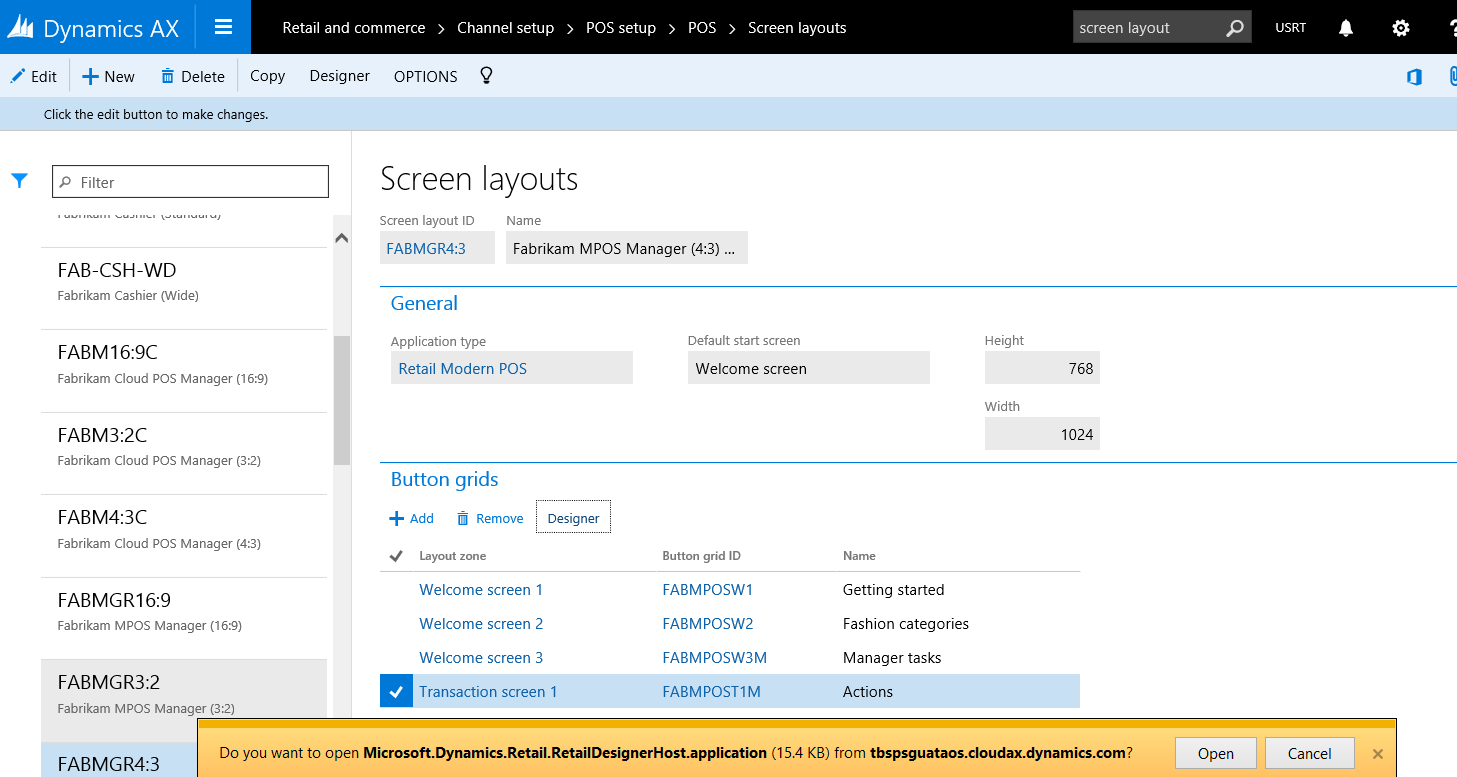
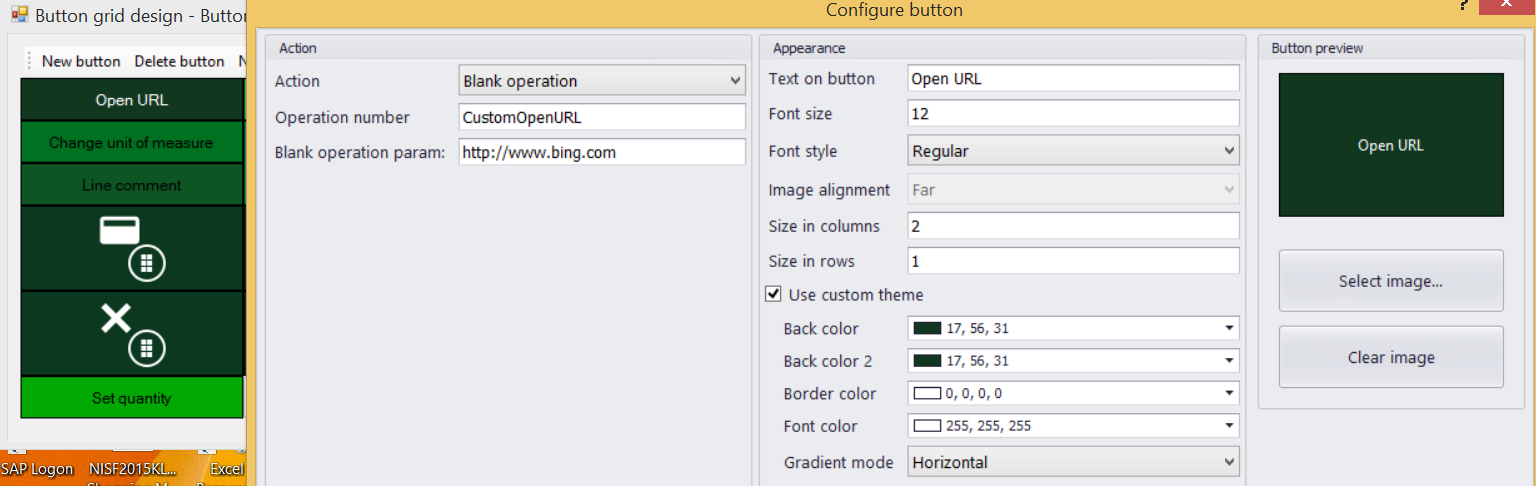
2. Assign the layout to a store
Add the modified layout to the store where you want to use it (in this example, the Houston store).
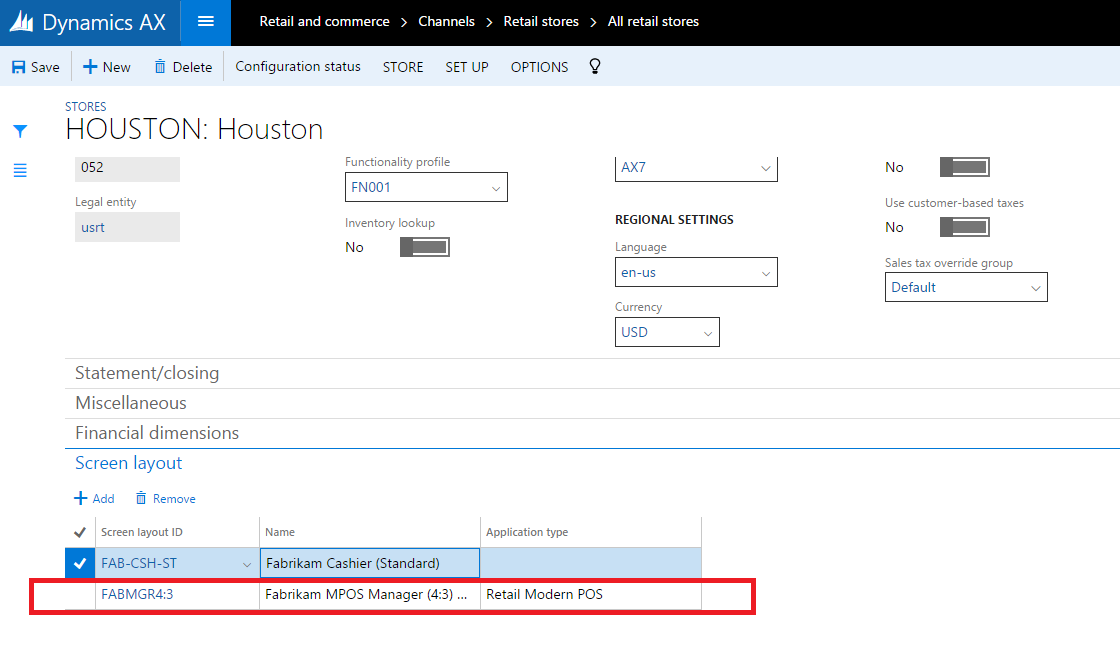
3. Assign the layout to the worker
Modify the screen layout in the worker setup so the new button shows up for that worker.
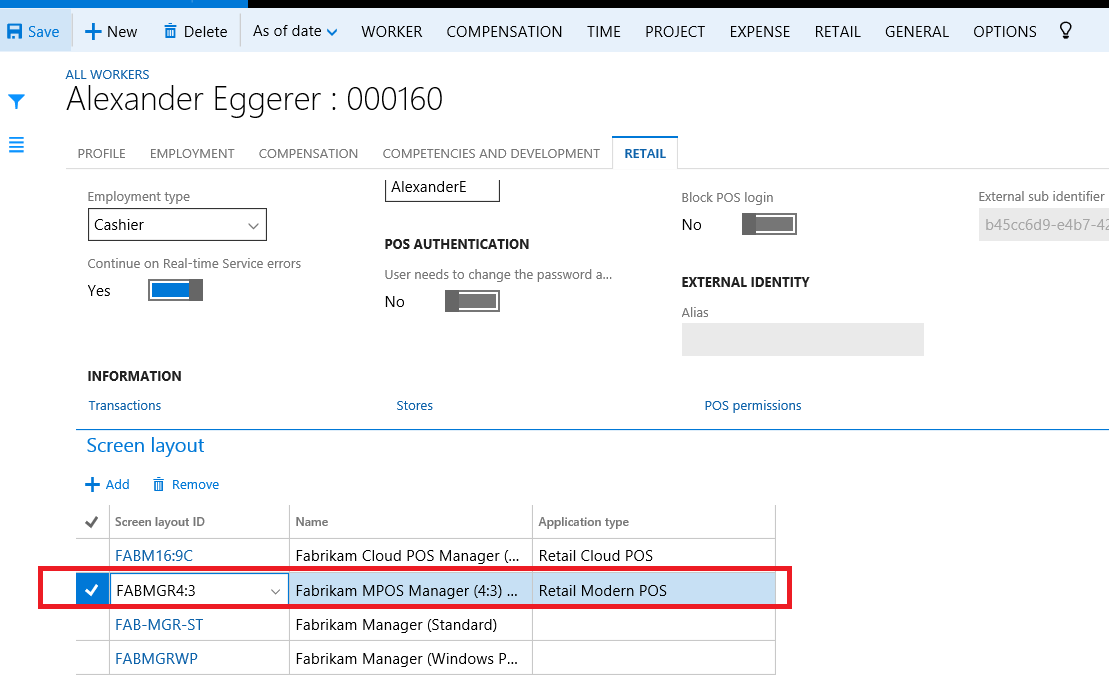
Then run jobs 1060, 1070, and 1090 to push the worker configuration, store configuration, and the new screen layout to the Channel DB.
4. Run the MPOS SDK and confirm the button appears
Launch the MPOS SDK from Visual Studio. The new button should be visible.
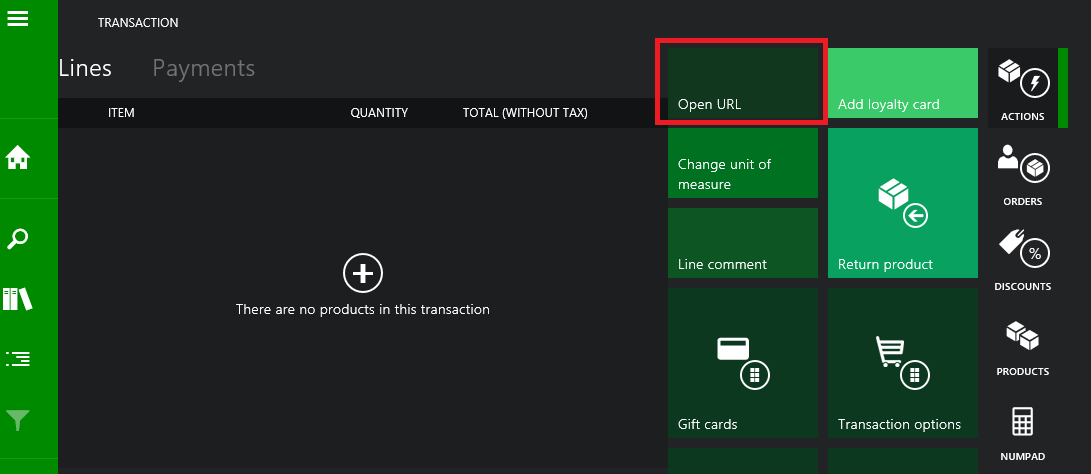
Pressing it at this point gives:
The blank operation identifier is invalid
That's expected — there's no handler registered yet.
5. Register the handler
In POS.ViewModels → OperationsMap.ts, register a new handler for the custom Blank Operation:
Operations.BlankOperationHandler.registerBlankOperationHandler(
    "CustomOpenURL",
    new Operations.OpenURLOperationHandler()
);
6. Implement the handler
In Pos.Core → Operations, add a new TypeScript file — CustomBlankOperations.ts — with the handler definition:
module Commerce.Operations {
    "use strict";

    export class OpenURLOperationHandler extends OperationHandlerBase {
        /**
         * Executes the OpenURL operation.
         * @param {IBlankOperationOptions} options The operation options.
         * @return {IAsyncResult<IOperationResult>} The async result containing the operation result, if any.
         */
        public execute(options: IBlankOperationOptions): IAsyncResult<IOperationResult> {
            // sanitize options
            options = options || { operationId: undefined, operationData: undefined };

            var asyncQueue: AsyncQueue = new AsyncQueue();
            var asyncResult: VoidAsyncResult = new VoidAsyncResult(null);
            var url = String(options);

            asyncQueue.enqueue((): IAsyncResult<ICancelableResult> => {
                Windows.System.Launcher.launchUriAsync(
                    new Windows.Foundation.Uri(url)
                );
                return asyncResult;
            });

            return asyncQueue.run();
        }
    }
}
Run the modified app and trigger the Blank Operation — it should open the URL (http://www.bing.com in this example) in your browser.
That's the whole exercise. For a deeper dive into MPOS customization, these two posts from the original AX7 extensibility series are worth reading: