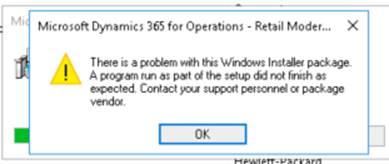
Occasionally you'll hit an error trying to uninstall MPOS — or any other program, for that matter.
Corrupted registry keys are one of the more common causes. Microsoft ships a utility that cleans this up:
Fix problems that block programs from being installed or removed
That handles most cases, but when multiple user profiles are involved you may also need to make sure every MPOS package is actually gone.
1. List installed packages
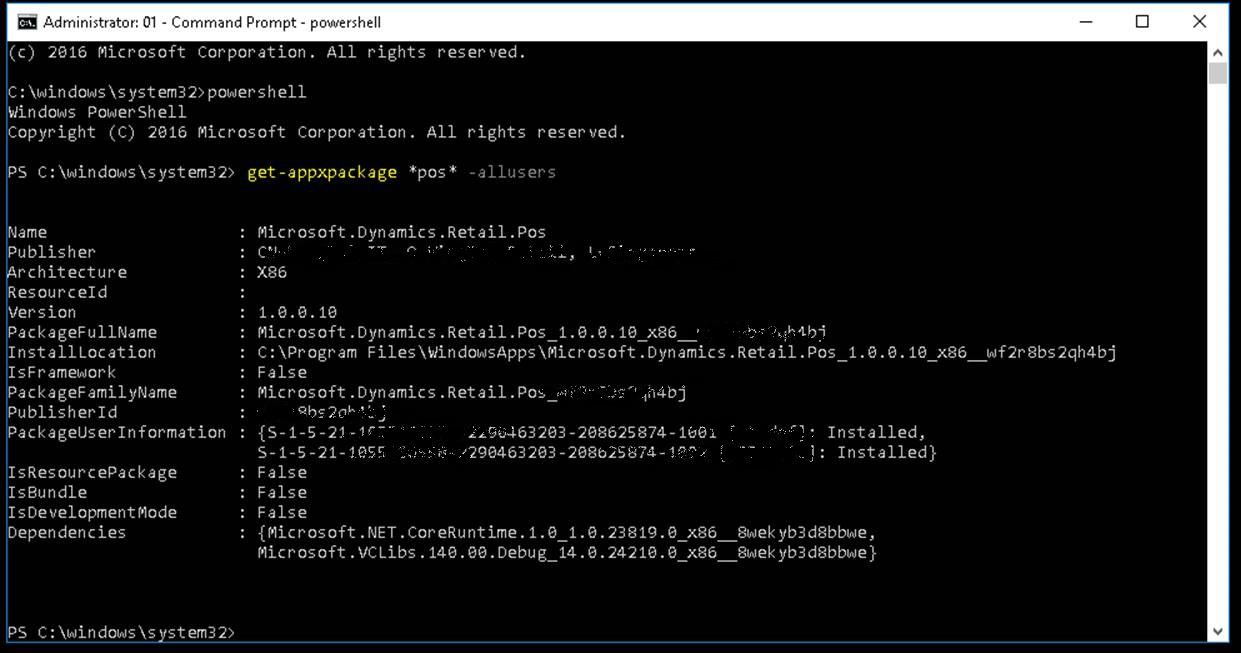
Run the following in an elevated PowerShell prompt:
Get-AppxPackage *pos* -allusers
2. Remove the package for each user
Check PackageUserInformation in the output above — it lists every user the package is provisioned for. Remove it with:
Get-AppxPackage *pos* | Remove-AppxPackage
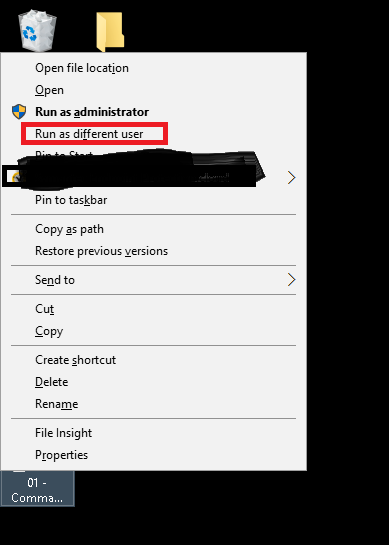
This only removes the package for the currently logged-in user. If you have multiple users — say admin and user1 — you'll need to run the command once per user, logging in as each one. The quickest way to do that without switching accounts is Run as a different user, available by right-clicking the Command Prompt icon: